
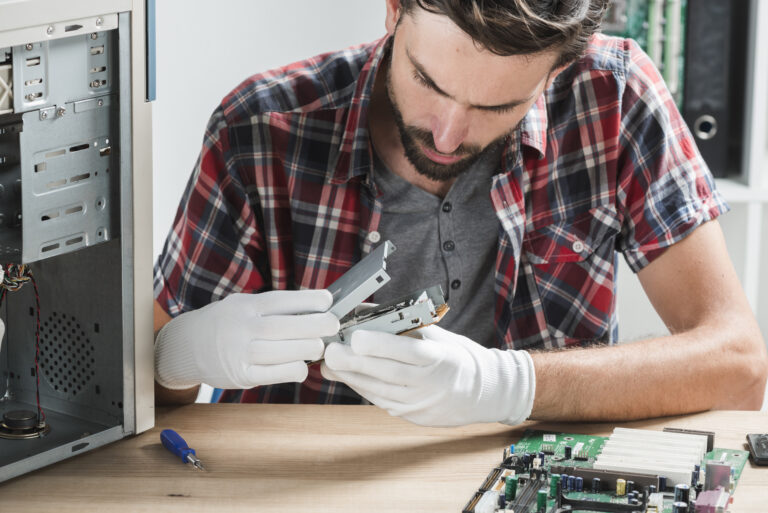
Computers are essential to everyday life—whether for work, school, entertainment, or running a business. Because we use them so often, it’s no surprise that issues pop up from time to time. The good news is that many of these problems don’t require professional help right away. With a little guidance, you can solve many common computer issues right at home and save both time and money. In this detailed guide, we’ll walk through 10 of the most frequent computer problems and step-by-step solutions you can try before calling a technician.
1. Slow Computer Performance
A slow computer is one of the most frustrating issues users face. Over time, devices can become sluggish due to a combination of factors.
Common Causes:
- Too many startup programs
- Low storage space
- Background apps running continuously
- Malware infections
- Outdated or failing hardware
How to Fix It:
Start by disabling unnecessary startup programs. On Windows, you can do this through Task Manager under the “Startup” tab. Next, uninstall programs you no longer need and delete temporary files to free up storage. Running a full virus scan can also help if malware is part of the problem. If slowness continues, consider upgrading your RAM or switching to a solid-state drive (SSD) for a significant performance boost.
2. Computer Won’t Turn On
A computer that refuses to power on can be alarming, but the cause is usually simple.
How to Fix It:
Start with the basics—ensure the power cable is securely connected and try plugging it into a different outlet. If you’re using a laptop, test a different charger if available. For devices with removable batteries, take the battery out, wait 30 seconds, and reconnect it. You can also try a power drain by unplugging the device and holding the power button for 10 seconds before reconnecting and trying again. If none of these work, the issue may be related to the motherboard, power supply, or internal components, which may require professional diagnosis.
3. Frozen or Unresponsive Programs
Freezing software is a common problem, especially on computers with limited RAM or too many background tasks.
How to Fix It:
Press Ctrl + Shift + Esc (Windows) to open Task Manager and end the unresponsive task. Restart your computer afterward to clear temporary memory. Make sure your software is up to date and consider closing unused apps to free up resources. If this happens frequently, you may need more RAM or a system cleanup.
4. Slow Internet or Wi-Fi Issues
Sometimes it feels like your computer is the problem when the real issue is your internet connection.
How to Fix It:
Start by power-cycling your router and modem—turn them off for 30 seconds and then turn them back on. Ensure your computer isn’t too far from the router, as distance and thick walls can weaken Wi-Fi signals. Update your network drivers, and run a speed test to see whether your internet service provider (ISP) may be experiencing issues. If only one device is slow, the problem is likely on your computer, not your network.
5. Blue Screen of Death (BSOD)
The Blue Screen of Death appears when Windows runs into a critical system error. Though alarming, it often has a fixable cause.
How to Fix It:
Restart your computer first. If the problem persists, update your hardware drivers, especially graphics and chipset drivers. Remove recently added hardware devices that may be incompatible. Make sure your computer isn’t overheating, as excess heat can trigger system failures. You can also run built-in tools like Windows Memory Diagnostic to test your RAM or run System File Checker using the command sfc /scannow.
6. Overheating Problems
Overheating not only slows down performance but can also shorten your computer’s lifespan.
How to Fix It:
Check that your computer’s ventilation openings aren’t blocked. Clean dust from vents, fans, and heat sinks using compressed air. For laptops, consider using a cooling pad. If you’re comfortable with more advanced tasks, reapplying thermal paste between the CPU and heat sink can significantly reduce temperatures.
7. Strange Clicking or Grinding Noises
Odd noises are almost always a sign that something mechanical is going wrong.
Common Causes:
- Failing hard drive
- Dusty or failing fans
- Loose internal components
How to Fix It:
If the noise resembles clicking and your computer uses a traditional hard drive (HDD), back up your data immediately—this often means the drive is failing. Clean out dust from fans and check that screws and cables inside the case are secure. If a fan is damaged, replacing it is usually inexpensive and easy.
8. Printer Not Responding
Printer issues are incredibly common and often unrelated to the printer itself.
How to Fix It:
Ensure the printer is powered on and properly connected to your computer or network. Update or reinstall the printer drivers, and clear the print queue if jobs are stuck. Restart both the printer and your computer. If you’re using Wi-Fi, check the printer’s network settings to confirm it’s connected to the same network as your computer.
9. Unwanted Pop-Ups and Malware Issues
If you’re seeing pop-ups outside your web browser or noticing new toolbars and apps you never installed, you may have malware or adware.
How to Fix It:
Uninstall any unknown programs through your system settings. Use security tools like Windows Defender, Malwarebytes, or AVG to run a thorough scan. Additionally, reset your browser to default settings to remove unwanted extensions. To prevent future infections, avoid downloading software from untrusted websites and always keep your system updated.
10. Audio Not Working
Audio issues are often caused by software misconfigurations or faulty drivers.
How to Fix It:
Check the volume settings, ensure your device isn’t muted, and confirm the correct playback device is selected. Update or reinstall audio drivers, and test with another pair of headphones or speakers. If nothing works, restart essential Windows services like Windows Audio.
Final Thoughts
Computer problems are inevitable, but many issues can be fixed quickly with basic troubleshooting. Understanding these common problems empowers you to solve them at home, saving time, money, and stress. However, if your computer continues to act up, especially with hardware-related issues, seeking professional help is the smartest option.